As an educator or mentor, you can request to audit a learner's progress in Modern States courses. This article walks through how to send those requests and what happens next.
This article is for educators, mentors, counselors, and school staff who have been approved as Modern States auditors.
Before you start
- You need an approved auditor account. If you have not requested auditor status yet, see Educators: Getting Started with Auditor Access.
- Turn on two-factor authentication before you send requests. It is required for all auditor accounts, and learner data will not display until it is enabled. See Two-Factor Authentication (2FA): A Guide for Educators.
- You will need each learner's email address — the same address they use for their Modern States account.
Follow these steps to make a request
- Log in to your Modern States account at learn.modernstates.org
- Find the Request Auditees widget on your homepage. Use the ▾ arrow beside the title to expand or collapse it.
- Click New Request
Two request options
One learner (by email)
In the Student Email Address field, enter the learner's email address and click Add. Repeat for each learner you want to add, then click Submit to send the requests. Clear empties the form without sending, and Back returns you to the widget.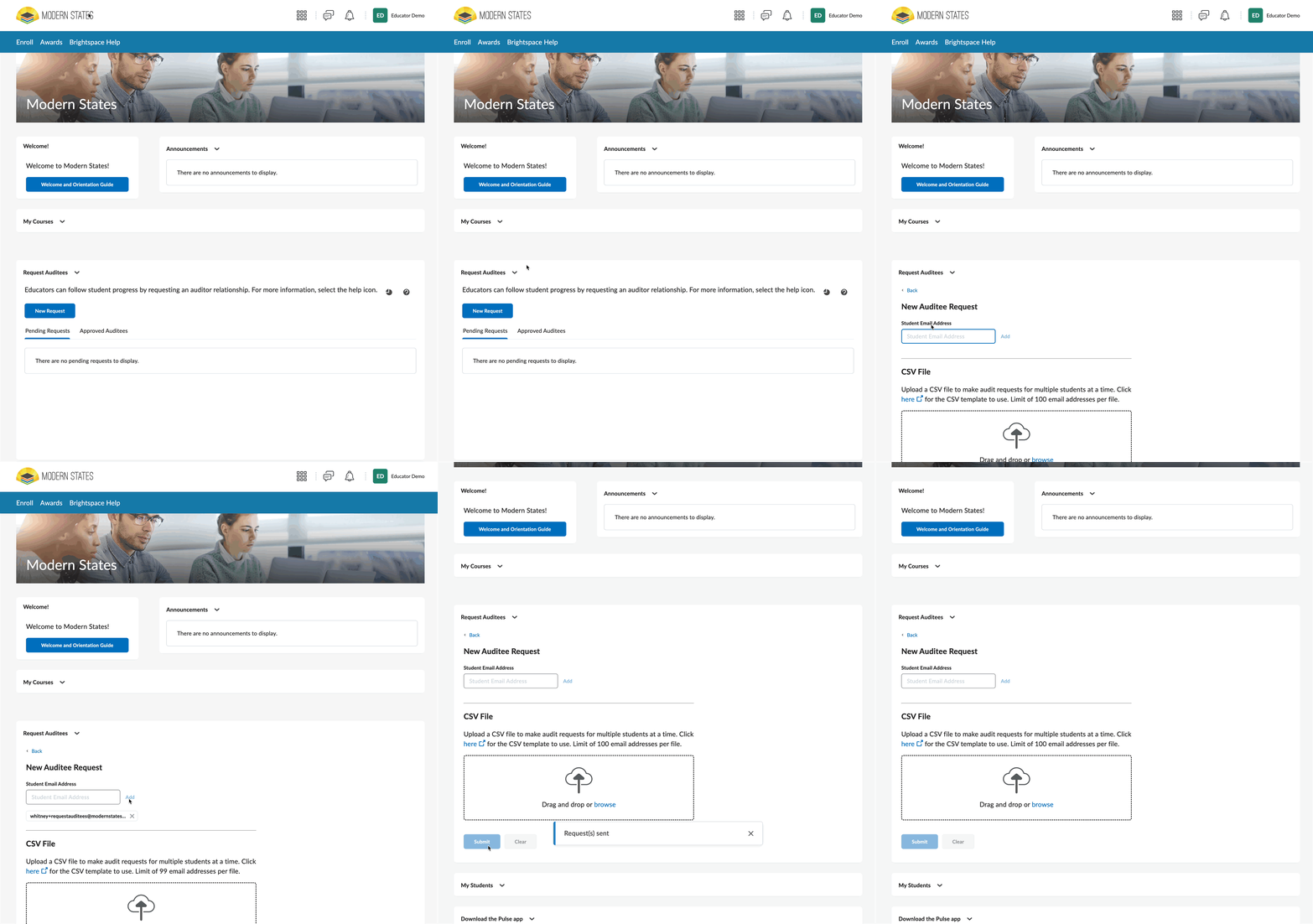
Multiple learners (CSV upload)
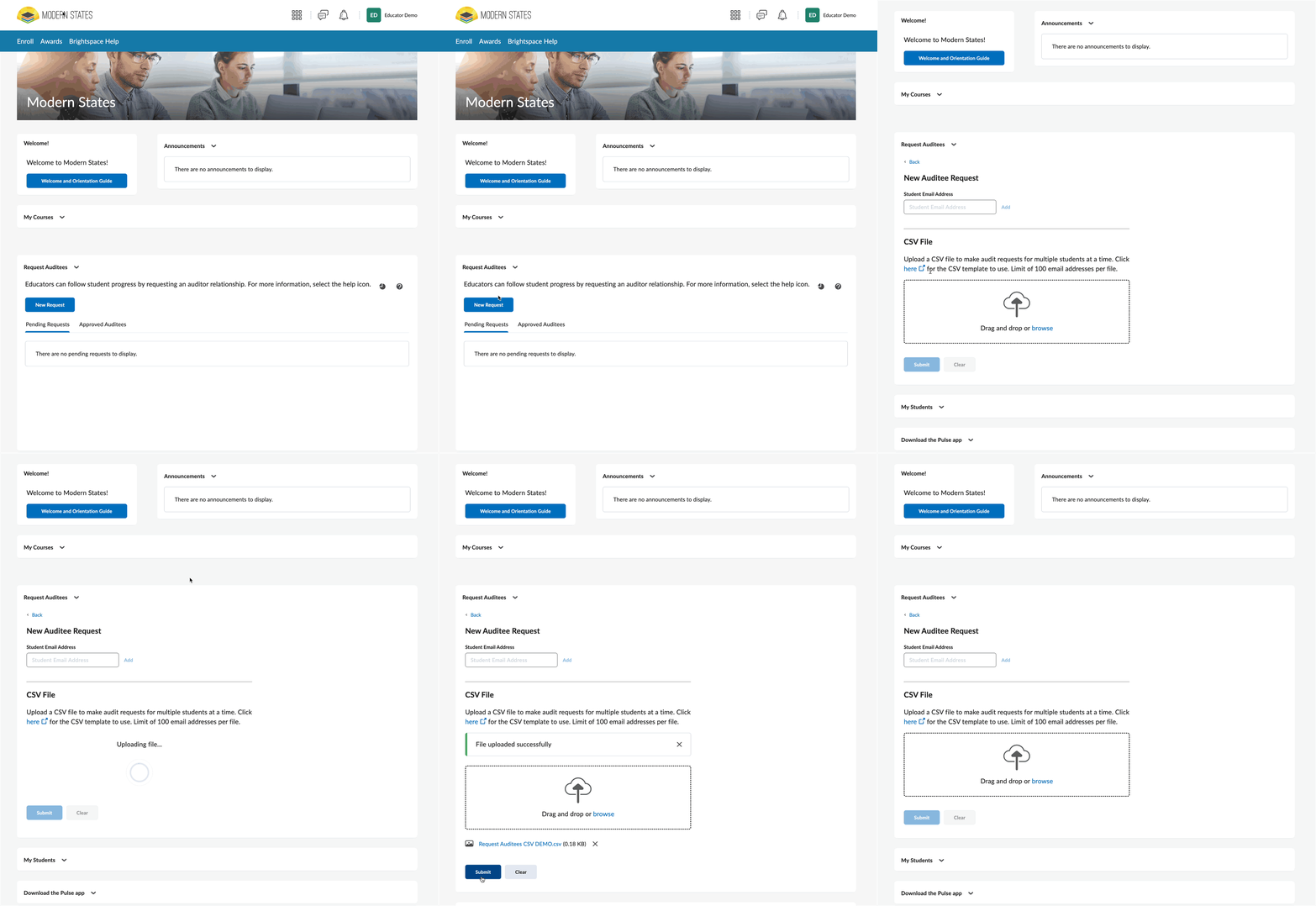
To request many learners at once, upload a CSV file of email addresses. On the New Auditee Request screen, under CSV File, click the here link to open the CSV guide and download the template. Add your email addresses to the template, save as a .csv file (not .xlsx or .gsheet), then drag and drop the file into the upload area — or click browse to select it — and click Submit.
CSV file requirements
Most upload errors come from formatting. Your file must meet all of the following:
- A properly formatted .csv file — you can create one in Excel, Google Sheets, or Numbers and save or export as CSV
- One column only. A file with more than one column will produce an error
- The column header must be exactly Email
- Start with 50 email address per file
- File size must not exceed 500KB
- The file cannot be blank, and a file containing only the header row will produce an error
- One file at a time. The filename does not matter as long as the file is formatted correctly
After you submit
The Request Auditees widget has two tabs:
- Pending Requests — learners who have not yet responded. Each row shows the email address, how many times a request has been sent to that learner in the Requests Sent column, and the Date Requested. Select a row to Resend Request or Delete Request, and use Filters to narrow a long list.
- Approved Auditees — learners who have approved you. These are the learners whose progress you can view.
- If a learner has not created an account yet, they will see your request the first time they log in after creating an account. You may need to resend it once they have signed up.
- A learner can receive a maximum of five requests. Check the Requests Sent count before resending, and coordinate with colleagues if more than one person at your school is requesting the same learners — once five requests have been sent, no further requests to that learner will go through.
- Learners can snooze responding up to five times. After the fifth time, they must approve or decline before they can continue using the platform.
- Pending requests are deleted automatically after 45 days. If a learner has not responded in that time, the request disappears from your Pending Requests list and you will need to send a new one.
Once a learner approves
Approved learners appear under Approved Auditees, in the "My Students" widget on your homepage, and in the Auditors Dashboard , found by clicking Analytics in the blue navigation bar. (If you do not see Analytics, click the Modern States logo to see the auditor’s navigation bar.) Dashboard data refreshes daily rather than live, so a newly approved learner may not appear there until the next refresh. See My Students Widget and Auditors Dashboard.
Good to know
- Learners control who sees their progress data. They must approve your request before you can access any of their information, and they can decline.
- Auditor relationships reset every year on September 22. On that date, existing auditor relationships are cleared and learners are asked to approve or decline auditor access again the next time they log in. You do not need to resend your requests — but plan for it: your Approved Auditees list will look empty until learners log in and re-approve, and learners who do not log in for a while will not appear for some time. Reminding your learners to log in during the last week of September is the fastest way to restore your view.
Related articles
- Educators: Getting Started with Auditor Access — the full four-step setup pathway
- Two-Factor Authentication (2FA): A Guide for Educators
- My Students Widget and Auditors Dashboard
- Getting Started with Modern States: Building Your Support Team (Auditor Approval) — share this one with learners who are unsure about approving your request
- Modern States Journey: A Guide for Auditors
Support and Resources
Click here for our knowledge base
Click here for further assistance
|




Was this article helpful?
That’s Great!
Thank you for your feedback
Sorry! We couldn't be helpful
Thank you for your feedback
Feedback sent
We appreciate your effort and will try to fix the article