Modern States provides an easy way to request a Modern States CLEP Scholarship after you complete your course requirements and pass the Modern States final exam. If your request is approved, you will receive a voucher code by email to use when registering for your CLEP exam through the College Board website.
In some courses or older help articles, this may be called a CLEP voucher or CLEP Voucher Request. These terms refer to the same benefit: Modern States provides a voucher code to help cover the cost of your CLEP exam.
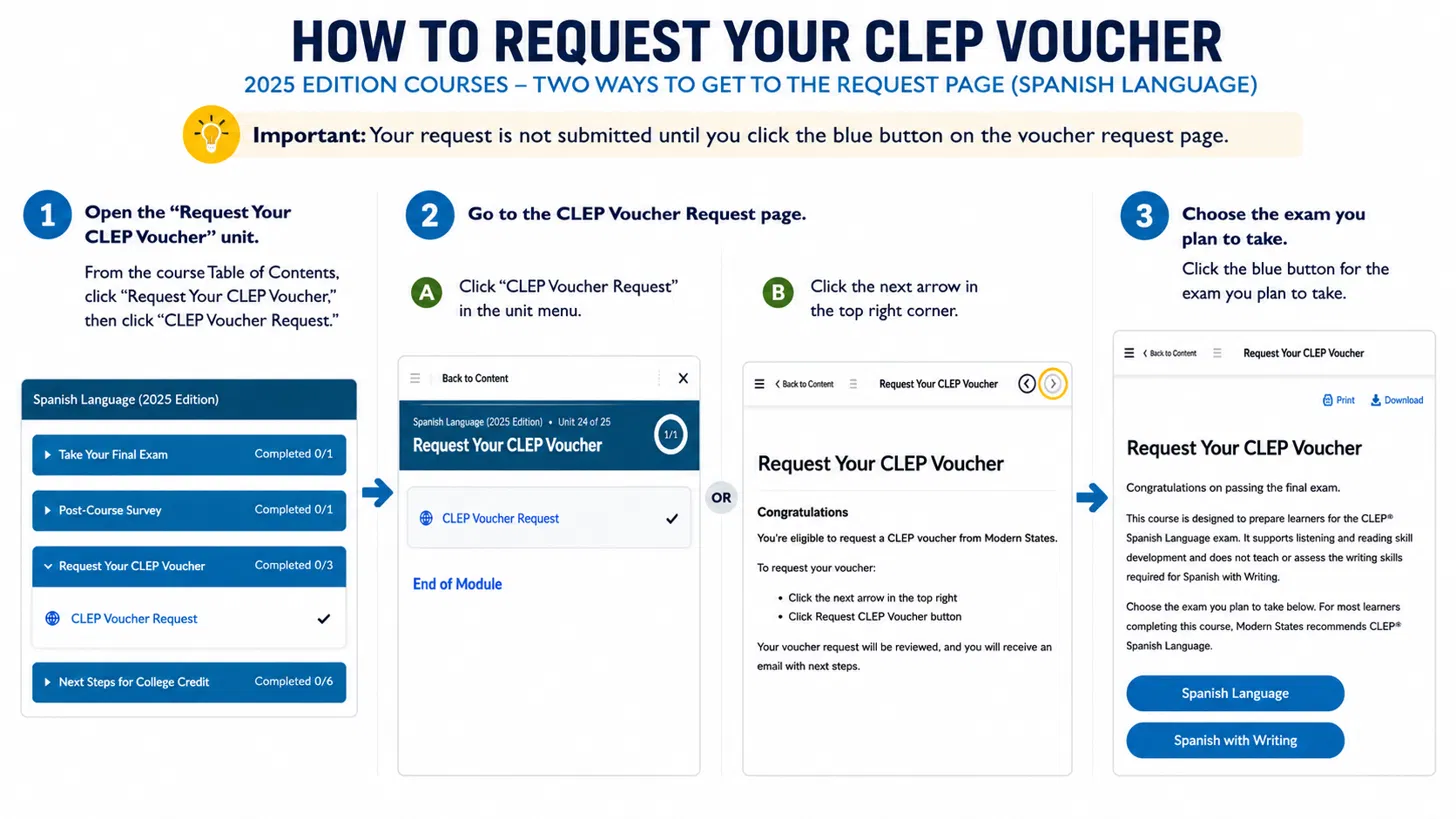
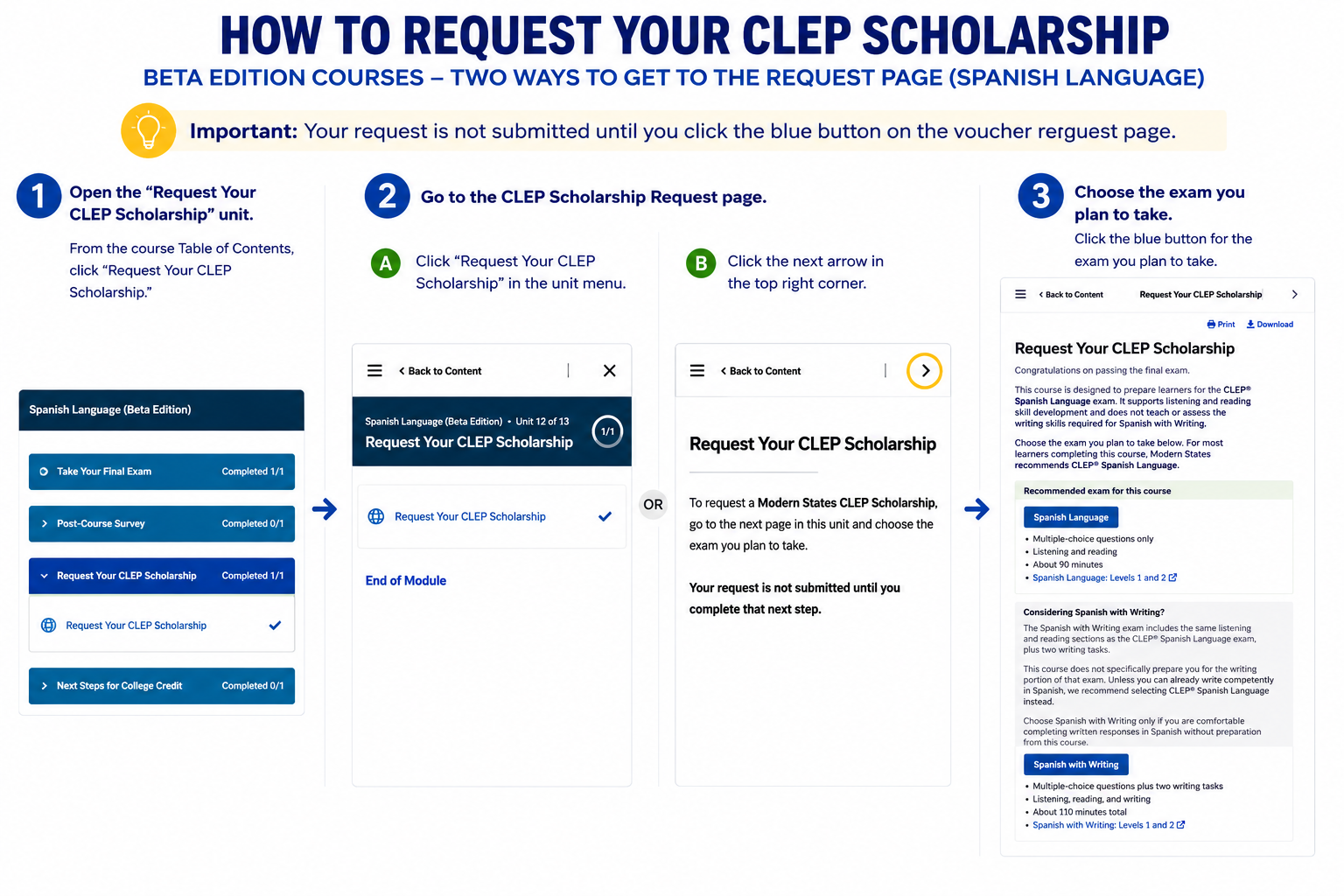
After you meet the course requirements, a request module will appear in your course. Depending on your course version, the module may be called “CLEP Voucher Request” (2025 Edition) or “Request Your CLEP Scholarship” (Beta Edition).
Within this module, you will find a button to submit your request. No separate form is required inside the course.
Important: Passing the final exam does not automatically submit your scholarship or voucher request. Your request is not submitted until you open the request module and select the button for the CLEP exam you plan to take.
Follow the steps below and refer to the examples shown:
Step-by-step instructions to request your CLEP Scholarship / voucher code
1. Log in to your Modern States account at learn.modernstates.org.
2. Complete your course requirements.
Complete the required course activities shown in your course, including all required Check for Understanding quizzes and the Final Exam.
You must earn 75% or higher on the Modern States Final Exam to unlock the scholarship or voucher request module.
3. Locate the scholarship or voucher request module.
Once you pass the Final Exam, a request module will appear in your course menu. The name and steps to get there depend on your course edition:
2025 Edition courses: Open “Request Your CLEP Voucher,” then click “CLEP Voucher Request.”
Beta Edition courses: Open “Request Your CLEP Scholarship.”
4. Select the CLEP exam you plan to take.
Some courses prepare learners for more than one CLEP exam option. If you see two exam buttons, select the exam you actually plan to take. Some courses include a recommendation or comparison to help you choose between exam options.
Only one voucher code will be issued per subject. Please choose carefully before submitting your request.
5. Wait for email confirmation.
Most learners receive their voucher code by email within a few minutes of submitting their request. In some cases — for example, if your request needs manual review — it can take up to 2 business days.
Tip: If it’s been more than a few minutes and you don’t see your voucher code, check your Spam, Promotions, and Other folders first — voucher emails are sometimes filtered by email providers. If it’s been 2 business days since you submitted your request and you still can't locate your code, you may be able to resolve this without contacting support. Use our self-service tool to have your code resent directly to your registered email address. Can't Find Your Voucher Code(s)?
What if my course looks different?
Modern States courses may not all look exactly the same. Some courses use the 2025 Edition course format, while others may be part of a newer or beta course experience. The scholarship request process is still available after you complete the course requirements and pass the Final Exam, but the wording or location of the request module may vary slightly by course.
If you earned 75% or higher on the Final Exam and do not see a scholarship or voucher request option in your course, please submit a support ticket so our team can help.
Support and Resources
Click here for our knowledge base
Click here for further assistance
|




Was this article helpful?
That’s Great!
Thank you for your feedback
Sorry! We couldn't be helpful
Thank you for your feedback
Feedback sent
We appreciate your effort and will try to fix the article